
Key takeaways
- Amazon Lists keep all your saved and “hearted” items in one place—turning “I love that” into “saved for later” until you’re ready to buy.
- From staying organized ahead of shopping events to planning for the holidays to managing everyday grocery needs, Lists help you offload your mental checklist.
- It’s easier than ever for customers to save products they want and need—whether “hearting” to save items as they shop, or uploading inspiration photos to discover and save similar products on Amazon.
- Simple conversations with Alexa for Shopping—in the Amazon Shopping app, on the website, and through text message—can now help you build and edit lists and even set List alerts so you know when prices drop.
It’s never been easier to prepare and stay organized thanks to Amazon Lists and its newest capabilities—like “hearting” products to save as you shop and conversational list management with Alexa for Shopping in the Amazon Shopping app, on the website, and by text.
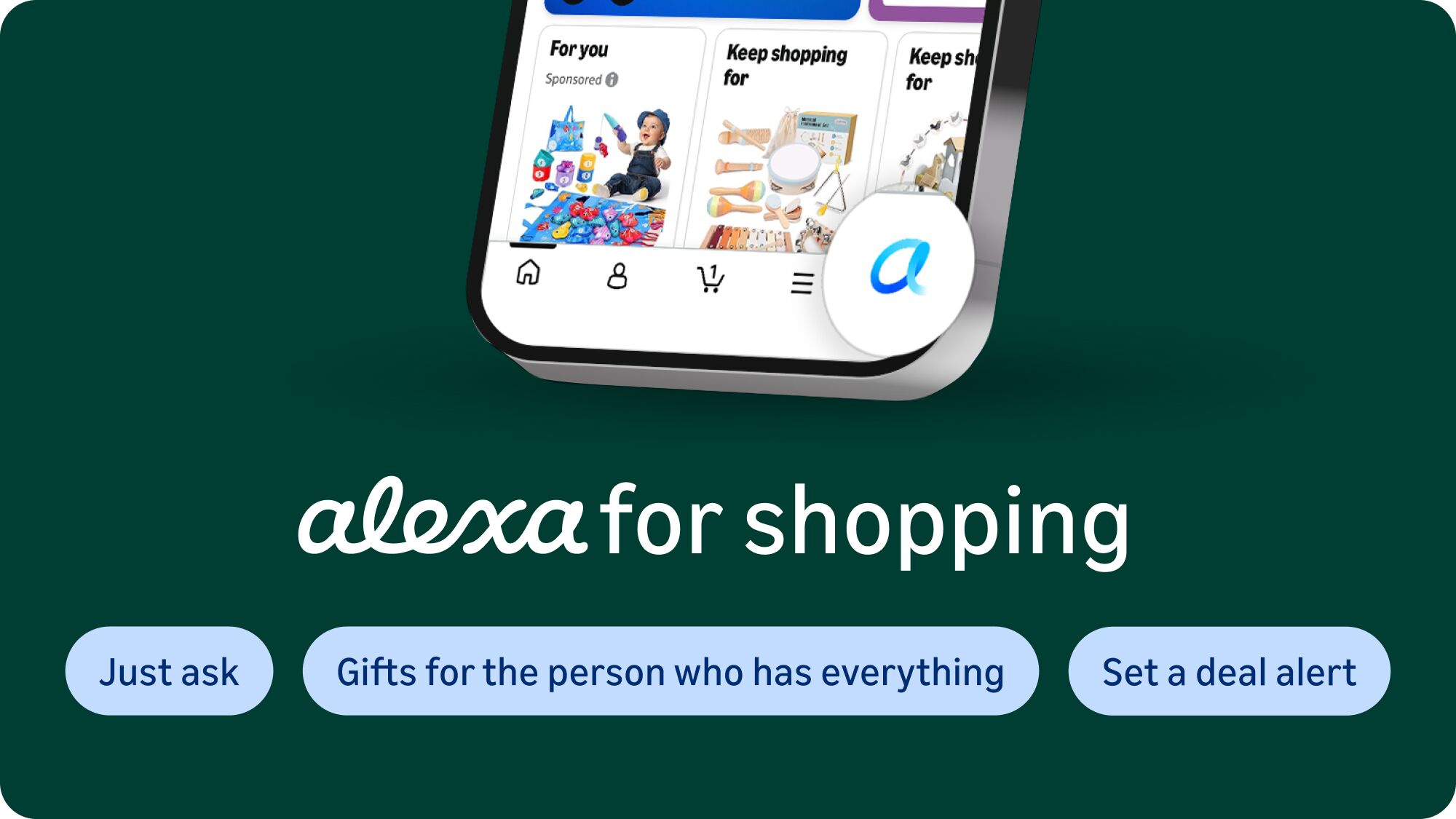
Here’s everything you need to know about making an Amazon List and getting the most out of them.
Benefits of creating Lists on Amazon
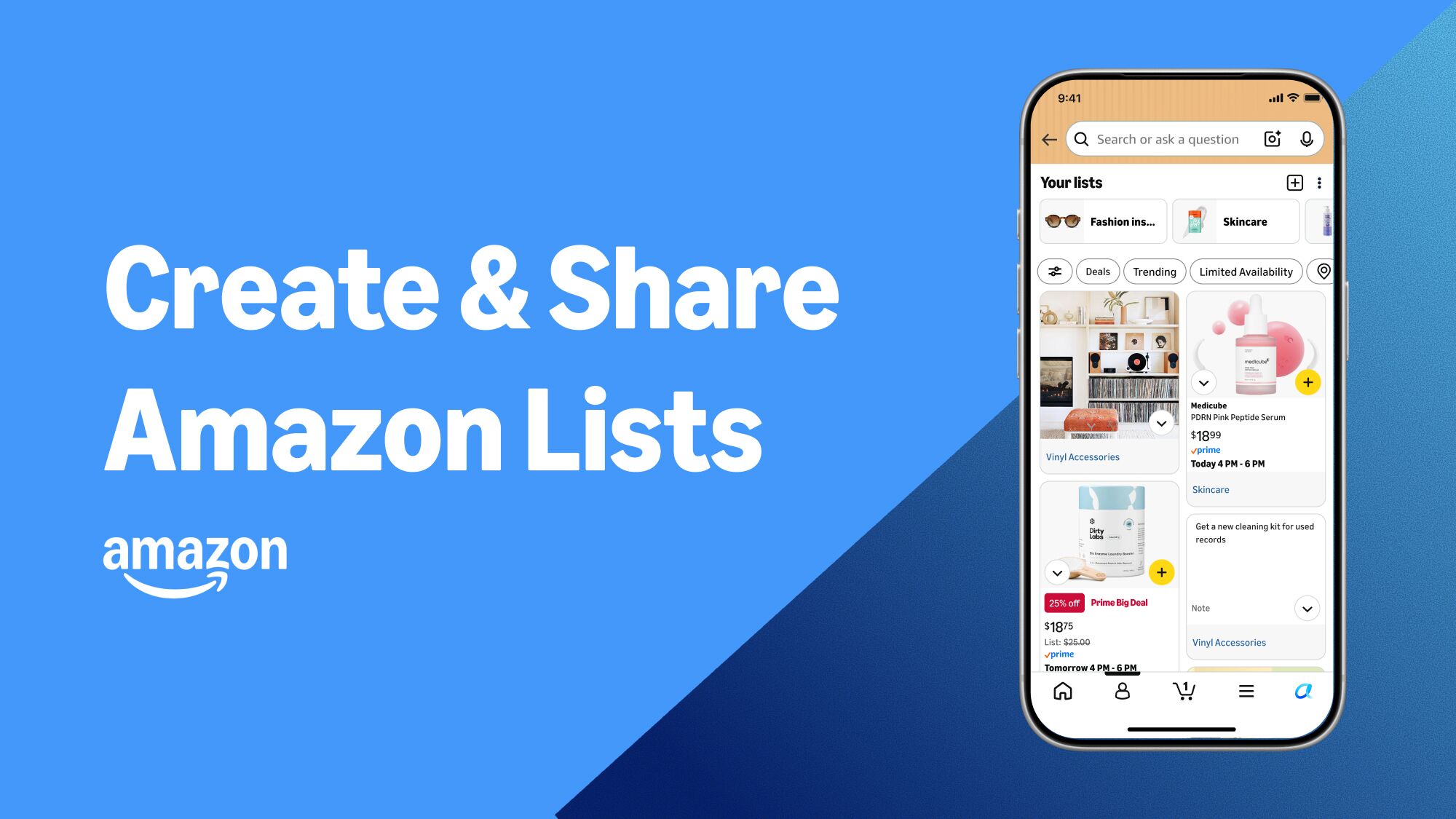
Lists are a great way to keep track of your everyday shopping needs and wants in one place. Maybe you’re redecorating or going on vacation and need a few things, or adding groceries to a running list as you think of what you need. Creating a new Amazon List helps you organize everything you may need—and it’s as easy as tapping to “heart” products as you browse, or telling Alexa for Shopping to “add oat milk to my grocery list” in the Amazon Shopping app, on the website, or by text. You can also share Lists and collaborate with the click of a button. As items are purchased, they are no longer visible on the List, so you don’t accidentally end up with multiples.
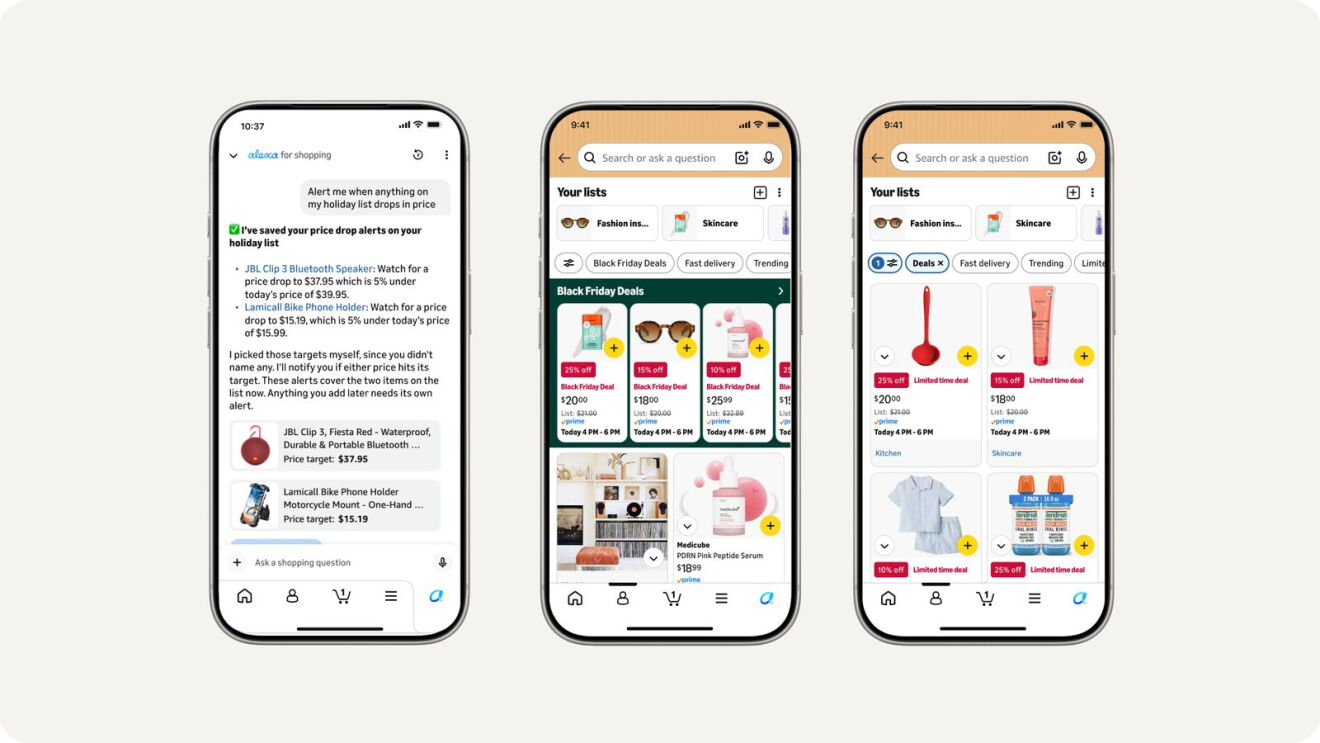
During busy shopping times like Black Friday and Cyber Monday, Lists are a great way to keep track of deals. New this holiday season, you’ll see active deals on items you’ve saved right on your Lists page, and you can always filter to view items you’ve saved that are on sale by navigating to your Lists page in the Amazon Shopping app. You can now also set up deal alerts on individual items or entire Lists through simple conversation with Alexa for Shopping—just ask, “Alert me when anything on my holiday list drops in price” or “Set a deal alert on the skincare in my Lists,” and Alexa for Shopping will notify you when an item hits a lower price.
You can also create Gift Lists to make birthdays, special occasions, and holiday gifting easier. Add the items you want and choose to share your Gift List with friends and family so they know exactly what to get you. They can shop your List without needing your address and see what’s already been purchased to avoid duplicates. Gifts bought from Gift Lists also come with extended return windows—so everyone can focus on the gifting, not the logistics.
How to create a List or Gift List
There are a few ways to create a List:
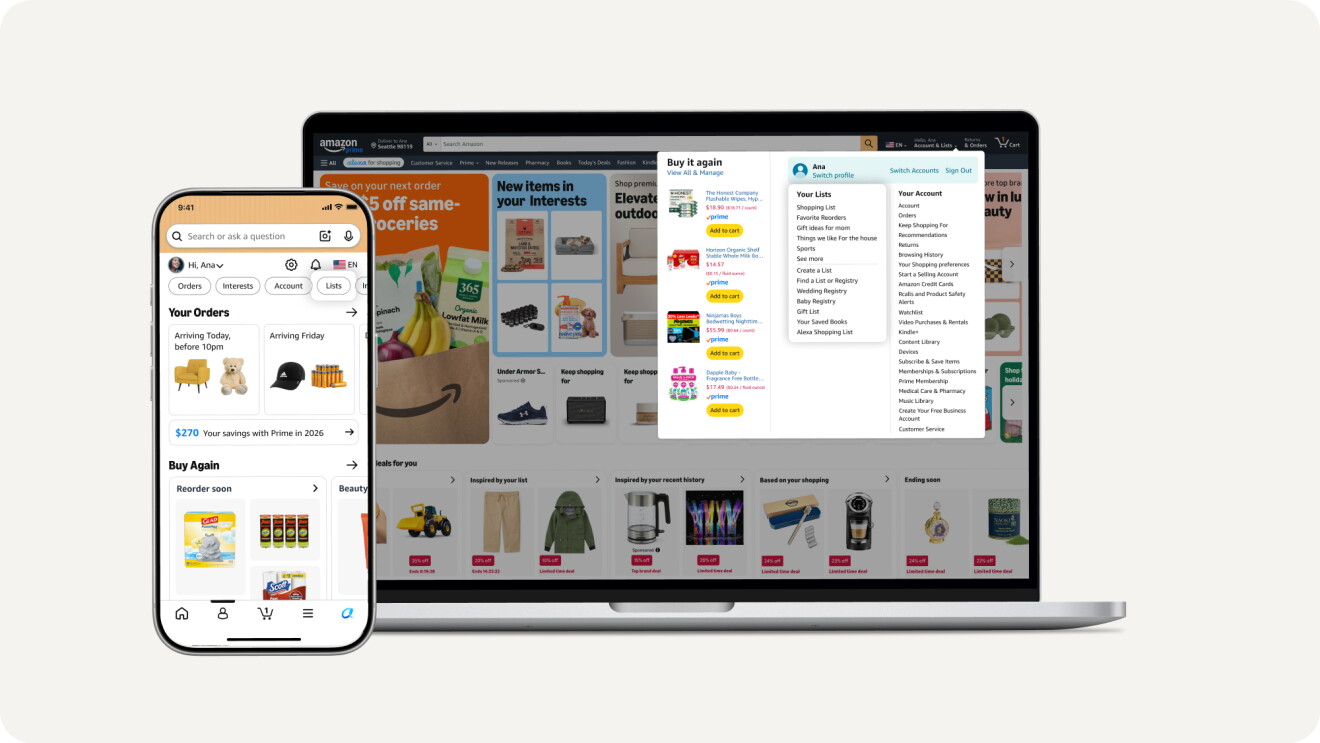
- If you’re using the Amazon Shopping app, find the “Me” tab, then tap “Lists.” From there, you can see your existing Lists or create a new one. If you’re on desktop, hover over “Account & Lists” at the top of the page, then select from the column titled “Your Lists” or select “Create a List.”
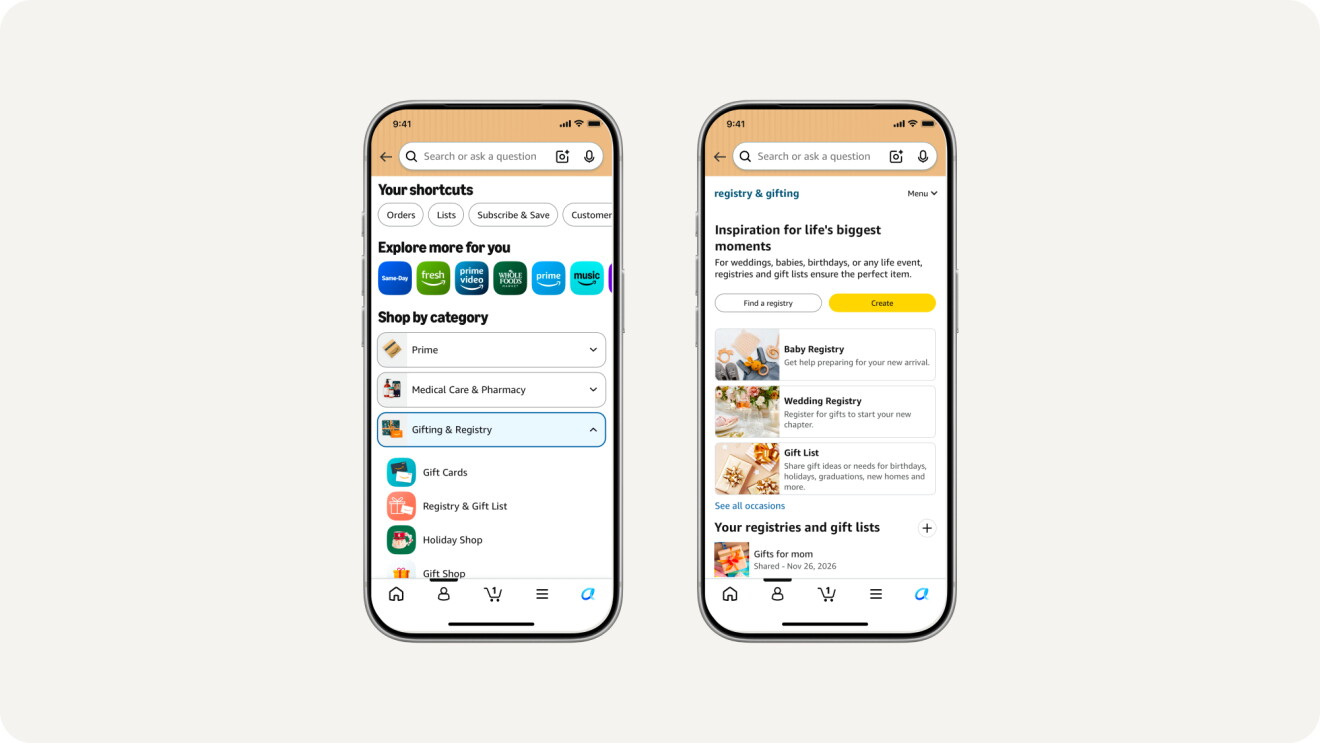
- To create a Gift List in the Amazon Shopping app, select the three horizontal lines in the navigation bar, navigate to “Gifting & Registry,” and tap “Registry & Gift List.” On desktop, hover over “Account & Lists” at the top of the page, then select “Gift List.”
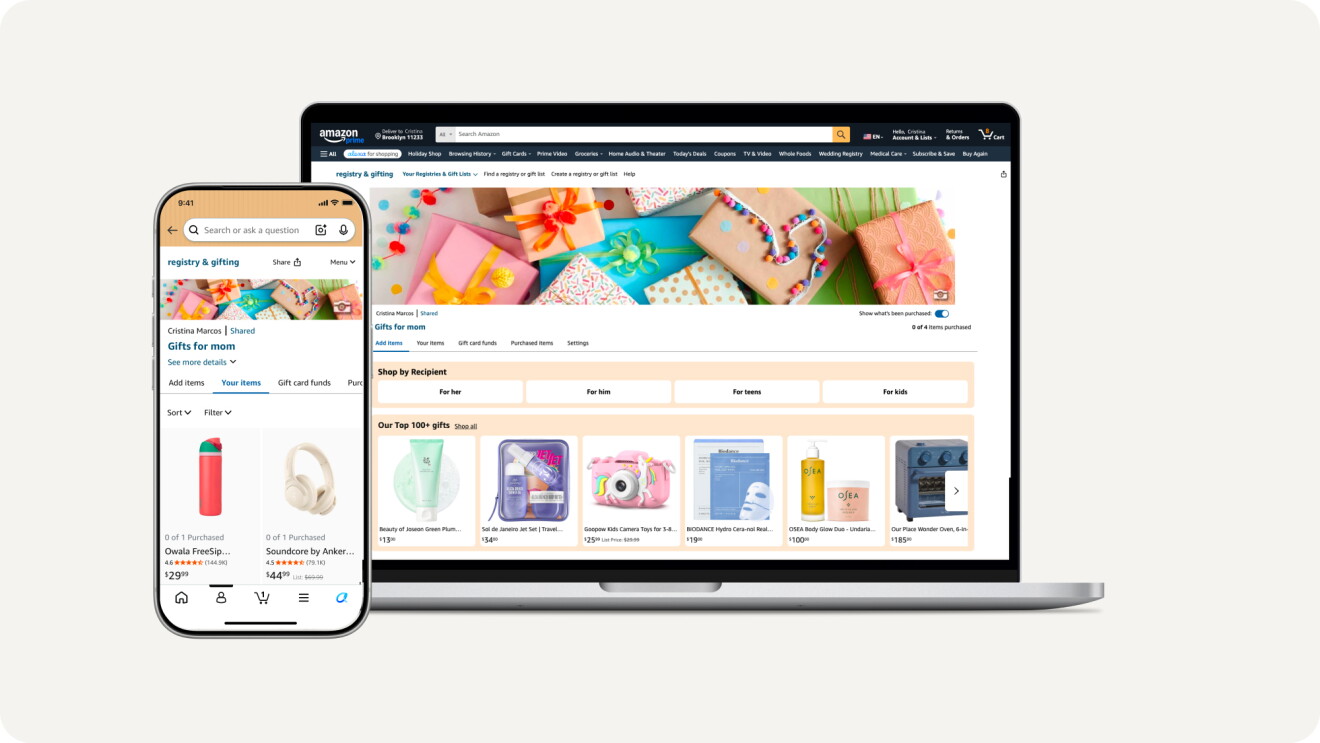
- One of the fastest ways to create a new List in the Amazon Shopping app is to simply tap to “heart” an item you want to save for later and then select “Create List.” On desktop, select the arrow next to “Add to List,” then select “Create a List.”
- You can also ask Alexa to create a new List, Gift List, or Registry.
How to add items to and manage lists
You can add items to a list directly from a product detail page as you’re browsing. Once you click an item, you will find a drop-down on the right side of the screen that says, “Add to List.” You can choose an existing list you may have already created, or create a new one from there.
Now, saving something you love is even easier, with the ability to “heart” items in more places across the Amazon Shopping app than ever before.
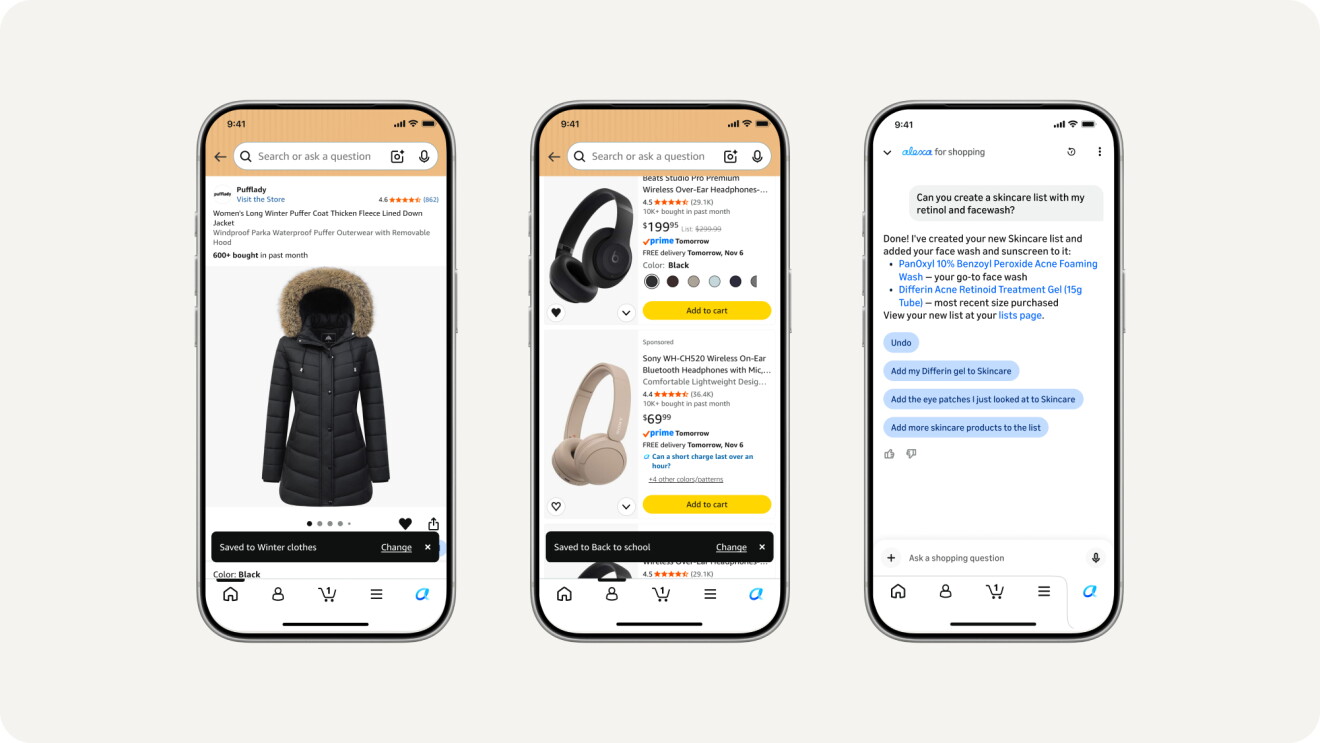
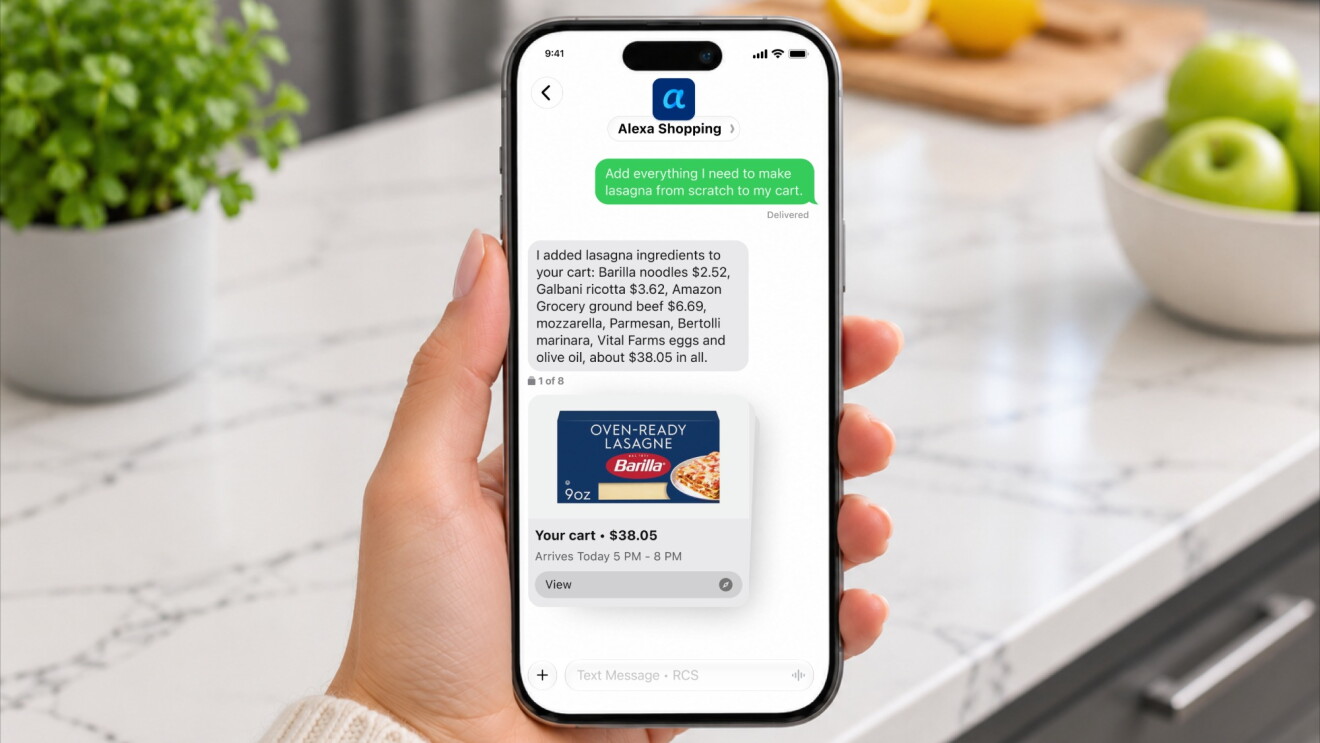
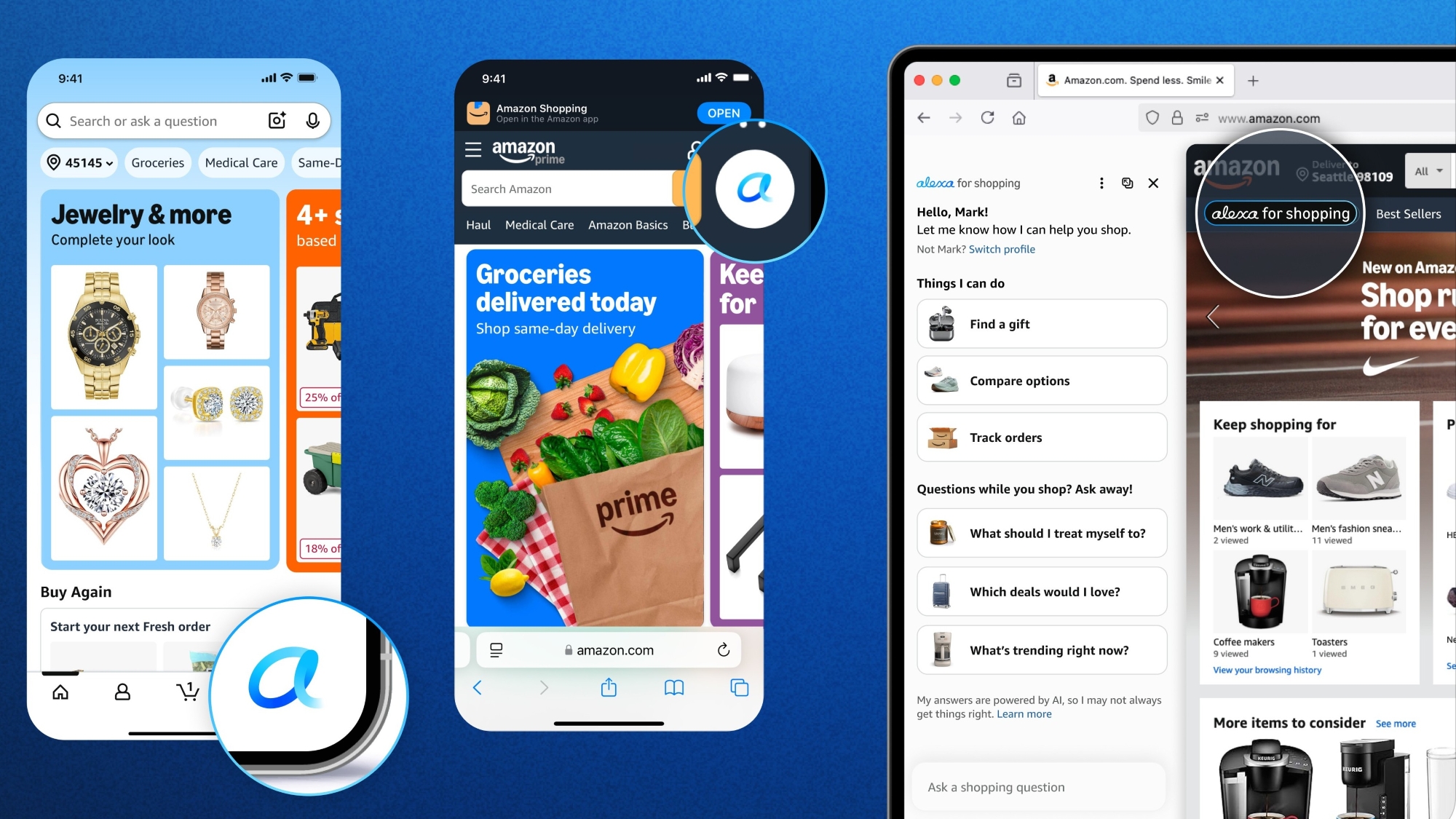
With Alexa for Shopping, you can use simple conversation to create and manage lists, save new items to lists, and ask it to set deal alerts so you know when items on your Lists drop in price. You can also text Alexa for Shopping to add items, like “add bananas, popcorn, and peanut butter to my grocery list” or “create a new cleaning supplies list,” and it’s handled instantly. Alexa for Shopping remembers your preferences too—so if you say your household is vegan, it will recommend milk alternatives and nondairy butter.
You can also save inspiration images to your lists to shop similar products—helping you go from “I love that” to “saved for later” faster. In the Amazon Shopping app, go to your Lists page and tap the “+” to upload a photo, then select “Shop Products.” Amazon Lens helps surface visually similar items that you can discover and tap to save.
How to share your List
Your lists will remain private unless you want to share with others. If you decide to share and collaborate on a list, tap the “Invite” button at the top of your list. Copy the link, choose ‘Email,’ or, in the Amazon Shopping app, choose ‘Text Message.’ You can set sharing permissions to view-only or view-and-edit, and manage who has access at any time.
How to find someone else’s List
Under “Your Lists,” you will see the option to “Find a List or Registry.” You can type in the person’s name to search. You can also simply ask your loved ones to share their list.
Lists are an easy way to keep your shopping wants and needs organized—try making one today in the Amazon Shopping app, on the website, or by simply texting Alexa for Shopping.
Next, learn more about how to use Alexa for Shopping to compare products, check price history, and more.
UPDATE: This article was published on July 10, 2023, and was updated on November 18, 2026, to include additional features now available with Amazon Lists.